AI Tool Series #1: ChatGPT & AI Writing Assistants – The Skills That Will Make You Competitive

“I used to spend HOURS drafting one professional email, worried about grammar, tone, and whether I’d be taken seriously. Now? 5 minutes. But here’s what matters more: I’ve gotten THREE promotions since mastering AI writing tools. Let me show you the exact career advantages these give us.”


Why Written Communication = Career Power for Deaf Professionals 🎯

In modern workplaces, 60-80% of all professional communication is written: emails, Slack messages, project documentation, reports, proposals. While many hearing employees still rely heavily on phone calls and verbal meetings (which often exclude us), companies are increasingly valuing strong written communication skills.

Here’s our competitive advantage: We’ve been mastering written communication our entire lives. AI tools amplify this existing strength.


Specific Career Benefits for Deaf & Hard of Hearing Professionals

1. Eliminating the “English as a Second Language” Barrier

For many of us, ASL is our first language. AI writing assistants help us:

  • Match native English writing standards without years of additional study
  • Understand workplace jargon and idioms that don’t translate well from ASL
  • Write in different professional “registers” (casual Slack vs. formal client email)

Example: I used to avoid applying to senior positions because job descriptions used complex English I wasn’t confident understanding. Now I paste them into ChatGPT: “Explain this job description in simple terms and tell me what skills they’re really looking for.” I’ve applied to (and gotten) jobs I would have skipped before.

2. Competing for Remote Work Opportunities

Remote work is IDEAL for deaf professionals—but you need to stand out in written applications.

How AI helps you win remote jobs:

  • Craft compelling cover letters that address job requirements precisely
  • Write proposals that convert (freelance/contract work)
  • Communicate effectively across time zones (no phone tag needed)
  • Document your work clearly so your value is visible

Statistics matter: Remote jobs get 100+ applications. AI helps you write the ONE that gets read.

3. Thriving in Fields That Value Documentation

Certain careers are perfect for deaf professionals AND highly value written skills:

Tech & Software Development:

  • Write clear documentation (often required)
  • Communicate in GitHub, Jira, Slack
  • Explain technical concepts in writing
  • AI advantage: Use ChatGPT to understand code, write documentation, explain technical concepts to non-technical stakeholders

Project Management:

  • Create project plans and status reports
  • Document decisions and requirements
  • Coordinate teams via written channels
  • AI advantage: Generate meeting summaries, create project templates, draft stakeholder updates

Content Creation & Marketing:

  • Write blog posts, social media, newsletters
  • Create marketing copy
  • Develop content strategies
  • AI advantage: Overcome writer’s block, generate multiple content variations, optimize for different platforms

Data Analysis & Research:

  • Write clear analysis reports
  • Explain findings to stakeholders
  • Document methodologies
  • AI advantage: Transform raw data insights into compelling narratives, create executive summaries

Legal & Compliance:

  • Draft contracts and policies
  • Write case summaries
  • Create compliance documentation
  • AI advantage: Understand complex legal language, draft initial versions of documents

4. Navigating Workplace Communication Without Accommodation Delays

Real talk: Even with legally required accommodations, getting interpreters for every meeting, waiting for captions, or requesting transcripts takes time and energy.

AI gives you immediate access to:

  • Understanding written materials instantly (no waiting for simplified versions)
  • Drafting responses quickly (no communication lag)
  • Self-advocacy (write clearer accommodation requests)
  • Independence in learning (research new skills without relying on others)

5. Building Expertise That Companies Need

Here’s something most people don’t realize: Being skilled at AI tools is itself a marketable skill.

How to position yourself:

  • “I streamlined our team’s documentation process using AI tools, saving 10 hours/week”
  • “I trained team members on using AI for clearer communication”
  • “I developed AI-assisted workflows that improved our response time by 50%”

Career paths opening up:

  • AI implementation specialist
  • Accessibility + AI consultant
  • AI prompt engineer
  • Technical writer (AI-assisted documentation)
  • Content strategist (AI-enhanced creation)

Template/Sample: I added “AI-powered communication workflows” to my resume. In my last interview, I spent 15 minutes explaining how I use AI tools—and got offered 15% more than the posted salary because the company wanted those skills across their team.

6. Salary Negotiation & Self-Advocacy

This is HUGE and often overlooked.

Use AI to:

  • Research salary ranges for your role and location
  • Draft negotiation emails that are assertive but professional
  • Prepare responses to common pushback (“We can’t increase salary”)
  • Document your achievements in compelling language for performance reviews
  • Request accommodations clearly with legal backing if needed

Template: “I’m negotiating salary for [role]. Current offer is [X]. Market rate is [Y]. Draft a professional email that: 1) expresses enthusiasm, 2) presents data supporting higher salary, 3) maintains positive tone.”


Top AI Writing Tools to Master 📝

1. ChatGPT (Free + Paid)

🔗 https://chat.openai.com

Free version capabilities:

  • Unlimited text conversations
  • Draft emails, letters, reports
  • Learn new concepts
  • Explain complex topics
  • Translate professional jargon

Paid version ($20/month) adds:

  • Faster responses (important for work deadlines)
  • Access to GPT-4 (significantly better at complex tasks)
  • Internet browsing for current information
  • File uploads (analyze PDFs, spreadsheets)
  • Custom instructions (teach it your writing style)

Career-specific use cases:

  • Job hunting: “Review this resume for [job title]. Suggest improvements to match the job description: [paste description]”
  • Daily work: “Turn these meeting notes into a professional email update for my manager: [paste notes]”
  • Learning: “I need to learn [skill] for work. Create a 30-day learning plan with daily tasks”
  • Problem-solving: “I’m having an issue with [workplace situation]. Suggest 3 professional ways to address this”

My recommendation: Start with free version. Upgrade to paid if you’re job hunting or use it daily for work—it pays for itself quickly.

2. Grammarly (Free + Premium)

🔗 https://grammarly.com

Why this matters for deaf professionals: Grammar mistakes in professional communication can lead to unfair assumptions about your capabilities. Grammarly helps eliminate this bias.

Free version:

  • Real-time spelling and basic grammar
  • Tone detection
  • Works across email, Google Docs, LinkedIn

Premium ($12/month):

  • Advanced grammar and style suggestions
  • Vocabulary enhancement
  • Plagiarism detection (important for content creators)
  • Formality level adjustment

Career applications:

  • Client communication: Ensures your emails are error-free
  • LinkedIn: Polishes your profile and posts (professional presence matters)
  • Job applications: Catches errors that could disqualify you
  • Reports/documentation: Makes your work look polished and professional

Install the browser extension and it works everywhere you type—email, Slack, LinkedIn, web apps.

3. Claude (Free + Paid)

🔗 https://claude.ai

Unique advantages:

  • Handles longer conversations (great for complex career questions)
  • Can analyze uploaded documents (contracts, policies, long reports)
  • Better at nuanced advice and detailed explanations
  • More natural conversation style

Best career uses:

  • Contract review: “I received this employment contract. Explain the key terms and flag anything concerning: [upload PDF]”
  • Career guidance: “Based on this conversation about my skills and interests, suggest 5 career paths I should research”
  • Understanding policies: Upload employee handbook, ask specific questions
  • Research: “Compare these three job offers considering salary, benefits, growth, and work-life balance”

Sample use case: When I’m considering major career decisions, I use Claude for in-depth analysis. It remembers context better across long conversations.

4. Notion AI (Built into Notion)

🔗 https://notion.so

Best for: Organization + AI writing in one place

Career benefits:

  • Keep all job search materials in one place (resumes, cover letters, applications)
  • Use AI to generate/improve content directly in your workspace
  • Create templates for recurring tasks
  • Manage projects with AI assistance

Pricing: Notion is free; AI features are $8-10/month

How we use it:

  • Job application tracker with AI-generated follow-up emails
  • Personal knowledge base where I ask AI questions about stored information
  • Meeting notes with AI summaries
  • Career development journal with AI insights

5. Microsoft Copilot (Included with Microsoft 365)

🔗 Available in Word, Outlook, PowerPoint if you have Microsoft 365 subscription

If your workplace uses Microsoft:

  • Outlook: Draft emails, summarize threads
  • Word: Generate reports, improve writing
  • PowerPoint: Create presentations from outlines
  • Excel: Understand formulas, analyze data

Career advantage: If your company already pays for Microsoft 365, you might have this included—check your subscription. It’s incredibly powerful for workplace productivity.


Specific Prompts for Career Success 💼

Job Hunting Prompts

  1. Resume improvement:
   "I'm applying for [job title] at [company/industry]. Review my resume and suggest how to better highlight relevant experience. Here's the job description: [paste] Here's my resume: [paste]"
  1. Cover letter:
   "Write a cover letter for [position] that: 1) Shows genuine interest in [company], 2) Highlights my experience in [relevant skills], 3) Addresses why I'm changing careers from [old field] to [new field], 4) Maintains professional but warm tone. Keep it under 300 words."
  1. Interview preparation:
   "I have an interview for [role]. Generate 15 likely interview questions and strong answer frameworks. My background: [brief summary]"
  1. Thank-you email:
   "Draft a post-interview thank-you email that: 1) References specific conversation about [topic], 2) Reaffirms my interest, 3) Adds one point I forgot to mention about [relevant skill], 4) Keeps professional tone"

Workplace Communication Prompts

  1. Email to manager:
   "Convert these rough notes into a professional email for my manager: [paste notes]. Tone should be confident but respectful. Include a clear ask for [specific need]."
  1. Difficult conversation:
   "I need to address [workplace issue] with [colleague/manager]. Suggest how to phrase this professionally via email, focusing on solutions rather than blame."
  1. Project update:
   "Turn this project status into an executive summary email: [paste details]. Highlight wins, acknowledge challenges, present clear next steps. Max 200 words."
  1. Meeting summary:
   "Create a meeting summary from these notes: [paste]. Format: decisions made, action items with owners, open questions. Professional tone for team email."

Career Development Prompts

  1. Skill assessment:
   "Based on current job market trends in [industry], which of these skills should I prioritize learning: [list skills]? Explain which has best ROI for career growth."
  1. Performance review prep:
    "Help me document my achievements for my performance review. I did: [list accomplishments]. Frame these in terms of business impact with metrics where possible."
  1. Salary research:
    "What's the typical salary range for [job title] with [X years] experience in [location/industry]? What factors influence the higher end of that range?"
  1. Career transition:
    "I'm transitioning from [current field] to [target field]. What skills are transferable? What gaps should I fill? Suggest a 6-month transition plan."

Learning & Skill Development Prompts

  1. Understanding complex topics:
    "Explain [technical concept] like I'm transitioning into this field. Include: basic definition, why it matters, how it's used in real work, and 3 resources to learn more."
  1. Learning plan:
    "Create a 30-day plan to learn [skill] well enough to use it professionally. I can dedicate 1 hour daily. Include daily tasks, practice projects, and how to measure progress."
  1. Workplace jargon:
    "My team keeps using these terms: [list]. Explain each in simple language with examples of how they're used in workplace conversations."

Real Career Wins Using These Tools 💪

Landing my current remote position:

  • Used ChatGPT to tailor resume to job description (got interview)
  • Practiced answers to technical questions with AI (nailed interview)
  • Drafted follow-up email that referenced specific conversation points (stood out)
  • Result: Offered position with full remote flexibility

Getting promoted to senior role:

  • Used AI to document my achievements in compelling business language
  • Prepared case for promotion with data and examples
  • Drafted email requesting promotion meeting with clear value proposition
  • Result: Promoted 6 months earlier than typical timeline

Building freelance income:

  • Created client proposal template with AI that I personalize for each project
  • Use AI to draft initial content, then add my expertise
  • Respond to clients professionally within hours (looks highly responsive)
  • Result: Earning extra $2K/month freelancing, all remote text-based work

Negotiating better accommodations:

  • Researched ADA requirements using AI
  • Drafted formal accommodation request with legal backing
  • Prepared responses to potential pushback
  • Result: Got real-time captioning service approved when initially denied

Getting Started: Your 4-Week Action Plan ✅

Week 1: Foundation

  • Day 1-2: Sign up for ChatGPT (free). Spend 30 minutes just asking it questions about topics you’re curious about
  • Day 3-4: Install Grammarly browser extension. Let it run in the background as you write emails
  • Day 5-7: Practice these 3 prompts daily:
    • “Improve this email: [paste]”
    • “Explain [something work-related] simply”
    • “Help me draft [something you need to write]”

Week 2: Apply to Real Work

  • Choose ONE work task: Could be writing a report, responding to a difficult email, preparing for a meeting
  • Use AI to complete it: Draft with ChatGPT, polish with Grammarly
  • Track time saved: How long did this task usually take? How long with AI?
  • Repeat daily: One real work task per day

Week 3: Build Your Prompt Library

  • Create a document: Save prompts that work well for you
  • Categories: Job hunting, daily work, learning, problem-solving
  • Customize: Modify standard prompts to fit your role/industry
  • Test variations: Try different phrasings to see what gets best results

Week 4: Advanced Techniques

  • Try Claude: For complex documents or career advice
  • Experiment with tone: Ask AI to make something “more confident” or “more diplomatic”
  • Combine tools: Use ChatGPT for drafting + Grammarly for polishing
  • Measure impact: What has improved? Time saved? Quality? Confidence?

After Week 4: Decide if paid versions are worth it based on your usage. If you’re using AI tools daily for work or job hunting, paid versions usually pay for themselves.


Pro Tips From 2+ Years Using These Tools 🔥

DO:

✅ Always review and personalize AI output

  • AI gives you 80% of the way there—add your voice, experiences, and specifics
  • Example: AI drafts email, you add personal anecdote or specific project reference

✅ Teach AI your communication style

  • In ChatGPT paid version, use “Custom Instructions” to set preferences
  • “I’m a deaf professional. Keep language clear and direct. Avoid idioms I might not know.”

✅ Use AI to check your own writing

  • Paste your draft: “Is this clear? Any grammar issues? How’s the tone?”
  • Helps you learn what strong writing looks like

✅ Ask for multiple options

  • “Give me 3 versions of this email: casual, professional, and formal”
  • Choose the one that fits best, or mix elements from each

✅ Use AI for cultural translation

  • “Is this phrase appropriate for professional American business communication?”
  • Helpful for understanding workplace culture nuances

DON’T:

❌ Share confidential company information

  • Don’t paste client names, proprietary data, or sensitive information
  • Rephrase to be generic: “a client in the healthcare industry” instead of specific names

❌ Copy-paste without reading

  • AI makes mistakes—factual errors, wrong tone, outdated information
  • You’re responsible for anything sent under your name

❌ Rely 100% on AI for major career decisions

  • Use AI for information and drafting, but make final decisions yourself
  • Combine AI insights with advice from mentors, career counselors, deaf professionals in your field

❌ Let AI replace your unique perspective

  • Your lived experience as a deaf professional is valuable
  • Use AI to communicate your ideas clearly—not to replace your ideas

❌ Ignore learning opportunities

  • When AI corrects your grammar, understand WHY
  • This helps you improve your writing skills long-term

Free Resources to Go Deeper 📚

Learning AI Tools:

Career Resources for Deaf Professionals:

  • National Deaf Center on Postsecondary Outcomes: Resources on career development
  • RIT’s Career Development Center: Deaf/HoH-specific career guidance
  • Deaf Professional Network (LinkedIn): Connect with other deaf professionals

Save this prompt library: (I’ll create a free Google Doc with 50+ career-focused prompts—drop a comment if you want the link!)


The Bottom Line 💯

AI writing tools haven’t just made my work easier—they’ve fundamentally changed what’s possible in my career.

Before AI tools:

  • Applied to 30 jobs → 2 interviews → 0 offers
  • Spent 3+ hours on important emails, still worried about mistakes
  • Avoided roles that required “excellent written communication”
  • Felt at a disadvantage competing with native English speakers

After mastering AI tools:

  • Applied to 15 jobs → 8 interviews → 3 offers (chose the best one)
  • Draft most emails in under 10 minutes with full confidence
  • Actively seek roles emphasizing written communication (my strength!)
  • Get compliments on my “clear, professional communication style”

This isn’t about AI doing the work for you. It’s about AI amplifying your existing strengths, removing barriers that shouldn’t exist, and letting you compete on your actual capabilities.

Your skills + AI tools = Career opportunities that were out of reach before


Next in this series: AI Video Editing & Auto-Captioning – Building your professional brand visually (coming soon!)

#DeafProfessionals #AITools #DeafCareers #ChatGPT #CareerDevelopment #DeafCommunity #RemoteWork #ProfessionalDevelopment #DeafSuccess #AccessibleTechnology #CareerGrowth #DeafAtWork

Your Smart Home Can ‘See’ Sound: Visual Alert Systems 2025

Picture this: Someone’s at your door. Your baby is crying upstairs. The smoke alarm goes off.

But you can’t hear any of it. 😶

Here’s what’s possible now: Your home uses LIGHT, VIBRATION, and your PHONE to tell you everything. 💡📱

⚠️ TRANSPARENCY STATEMENT ⚠️
We are NOT sponsored by, affiliated with, or paid by any company mentioned in this post. No affiliate links. Just sharing research from the deaf/HoH community. Always do your own research before purchasing!


🔔 Smart Doorbells That Flash Your Lights

Ring Video Doorbell sends instant alerts to your phone with live video—no more missed deliveries or guests. Even better, you can connect it to your Philips Hue lights to make them flash when someone rings.

  • Ring Doorbell: https://ring.com
  • Connect with Philips Hue lights to create visual alerts throughout your home

Philips Hue Secure Wired Video Doorbell has built-in integration—when someone rings, your Hue lights automatically flash. It’s designed to work seamlessly together.

Dedicated Visual Doorbell Systems:


👶 Baby Monitors With Visual Alerts

Nanit Pro Camera sends instant notifications to your phone (which can vibrate). Track breathing motion, sleep patterns, and get alerts for any movement—all viewable on your phone or Apple Watch.

Cubo AI Plus uses artificial intelligence to detect if your baby’s face is covered or if they’ve rolled over. Sends immediate alerts to your phone with vibration.

SereneLife Baby Monitor comes with a rechargeable smartwatch that vibrates when the camera detects your baby crying or moving.

  • Available on Amazon and major retailers

🚨 Smart Smoke Detectors

Google Nest Protect sends emergency notifications directly to your phone and Apple Watch. While it doesn’t have a built-in strobe, you get instant mobile alerts wherever you are.


💡 The Magic Connector: Smart Lights

Your existing Philips Hue lights can flash for ANY event. Connect them to doorbells, smoke detectors, phone calls, and more through:

  • IFTTT (If This Then That): Free automation service
  • Apple HomeKit: Built-in iOS automation
  • Amazon Alexa Routines: Voice assistant automation

This means one set of lights can alert you to multiple things—doorbell = blue flash, smoke alarm = red flash, phone call = green flash.


💰 Why This Matters

Most of these work with devices you already own. Your smartphone becomes the hub. Your smartwatch taps your wrist. Your lights flash in patterns you choose.

This isn’t just “assistive technology”—it’s smart technology. 🧠

Ever missed a doorbell because you were in the shower? Wearing headphones? Vacuuming? These visual systems help EVERYONE.

✅ How I Verified These Products

1. Multiple Source Cross-Referencing

  • I searched current reviews, product pages, and deaf/hard-of-hearing community discussions
  • Checked specialized sites like DeafVibes.com, ADCO Hearing Products, and accessibility forums
  • Looked for products mentioned repeatedly across different sources

2. What I Found:

  • Ring & Philips Hue: Widely used, established brands with accessibility integrations
  • Nanit Pro: NYT Wirecutter “Best WiFi Video Monitor,” highly rated by parents
  • Cubo AI: Consistently praised for picture quality and AI safety features
  • ERA-DCKIT-2: Specifically designed for deaf/hard-of-hearing users, sold by specialized retailers

3. Red Flags I Avoided:

  • Brand-new products with no reviews
  • Single-source recommendations
  • Products with no clear return policy

🔍 How YOU Should Verify (Don’t Just Trust Me!)

Step 1: Check Multiple Review Sources

  • Amazon reviews (look for 4+ stars with 100+ reviews)
  • YouTube video reviews (see the product in action)
  • Consumer Reports (independent testing)
  • Reddit communities: r/deaf, r/hardofhearing, r/smarthome
  • Specialized blogs: DeafVibes, Hearing Tracker, etc.

Step 2: Read NEGATIVE Reviews

This is critical! Look for:

  • Recurring complaints (same issue mentioned 10+ times = real problem)
  • How the company responds to complaints
  • Deal-breakers for YOUR specific needs

Step 3: Check Return Policies

Good companies offer:

  • 30-60 day return windows
  • Money-back guarantees
  • Clear warranty terms

Step 4: Ask the Community

  • Facebook Groups: “Deaf & Hard of Hearing Support”
  • Forums: AllDeaf.com, HearingLossHelp.com
  • Local organizations: Contact your local deaf community center

Step 5: Look for Certifications

  • UL Listed (safety tested)
  • FCC Compliant (wireless devices)
  • ADA Compliant (accessibility standards) – though many good products aren’t certified but still work well

⚠️ My Limitations (Important!)

I cannot:

  • Physically test all these products myself
  • Know if prices have changed since my search
  • Guarantee they’ll work for YOUR specific setup
  • Know about issues that developed after my research date

🎯 My Specific Recommendations for Due Diligence:

Before buying the products I listed:

  1. Ring Doorbell → Check current Amazon rating + watch YouTube setup videos for deaf users
  2. Philips Hue → Verify IFTTT/automation still works (sometimes integrations break with updates)
  3. Nanit Pro → Check if subscription costs have changed (big ongoing expense)
  4. Cubo AI → Read recent reviews about app reliability
  5. ERA-DCKIT-2 → Call 1-800-DOORBELL and ask about their guarantee

💡 The BEST Research Strategy:

“Test Before You Invest”

  1. Start with ONE product (maybe the doorbell)
  2. Buy from retailer with easy returns (Amazon, Best Buy)
  3. Test for 2-3 weeks
  4. If it works, expand your system
  5. If not, return and try alternative

📞 Who to Ask for REAL Advice:

  • Audiologists (they work with deaf/HoH clients daily)
  • Deaf equipment specialists: ADCO Hearing, Harris Communications
  • Technology Access Programs: Gallaudet University TAP (tap.gallaudet.edu)
  • State Relay Services (often provide equipment recommendations)

Bottom Line: I did research to find commonly recommended products, but YOU should always verify with current reviews, community feedback, and ideally a trial period before fully committing. Trust—but verify! 🔍

💬 What’s the ONE sound in your home you wish you could “see” instead?

#DeafTech #SmartHome #Accessibility #AssistiveTechnology #DeafCommunity #UniversalDesign #HomeAutomation #Tech2025 #InclusiveDesign #DisabilityInnovation

3 Game-Changing AI Tools for Deaf & Hard of Hearing People 🚀

Here are three incredibly useful AI-powered tools that are making real differences in daily communication and accessibility:


1. Google Live Transcribe

Why it’s amazing: Live Transcribe provides real-time transcription in over 120 languages and was developed in collaboration with Gallaudet University. The app was created by a deaf Google research scientist, Dimitri Kanevsky, who had been dreaming about this technology his whole life. With over one billion downloads, it has proven there’s huge demand for products made with deaf users in mind.

Best features:

  • Vibrates when someone says your name, allows you to type responses during conversations, and detects important environmental sounds like smoke alarms or baby cries
  • Works on Android phones and is completely FREE
  • Transcriptions stay secure on your device and aren’t stored on servers
  • Perfect for everyday situations like ordering coffee, doctor’s appointments, or casual conversations

Perfect for: Quick, everyday conversations and situations where you need instant captions on the go!


2. Otter.ai

Why it’s amazing: Otter provides AI-powered real-time transcription for meetings and lectures, and while initially designed as a productivity tool, it has become incredibly valuable for the deaf and hard of hearing community. What sets Otter apart is its ability to identify multiple speakers without requiring them to have the app, making it excellent for group discussions.

Best features:

  • Identifies different speakers automatically and integrates seamlessly with Zoom, Google Meet, and Microsoft Teams
  • Free tier offers 600 minutes per month (10 hours), making it truly accessible to all
  • You can highlight key phrases, add comments, edit transcripts in real-time, and search through past conversations
  • Allows you to add custom vocabulary for better accuracy with technical terms or names

Perfect for: Work meetings, online classes, lectures, and any situation where you need to save and review transcripts later!


3. Ava

Why it’s amazing: Ava offers 24/7 live captioning with both AI and professional human scribes (Ava Scribe) for the highest possible accuracy. The app provides real-time transcription with about 5 errors per 100 words with AI, or about 1 error per 100 words with their professional Scribe service.

Best features:

  • Works even without WiFi or phone service – captions available in airplane mode!
  • Text-to-speech feature lets you type and have Ava read aloud for you
  • Multiple people can connect to the same conversation, making group discussions fully accessible
  • Available on mobile, desktop, and web – works with all video conferencing platforms
  • Transcribes and translates conversations in 16 languages

Perfect for: Group conversations, family gatherings, important meetings, and situations where you need the highest accuracy possible!


💡 Quick Comparison:

Live Transcribe: Best for everyday quick interactions, completely free, Android-only
Otter.ai: Best for work/school with saved transcripts, great free plan, excellent speaker identification
Ava: Best for group conversations with multiple devices, works offline, hybrid AI + human option

Pro tip: Many people in the community use a combination of these tools depending on the situation. Try them all and see which ones work best for your lifestyle!

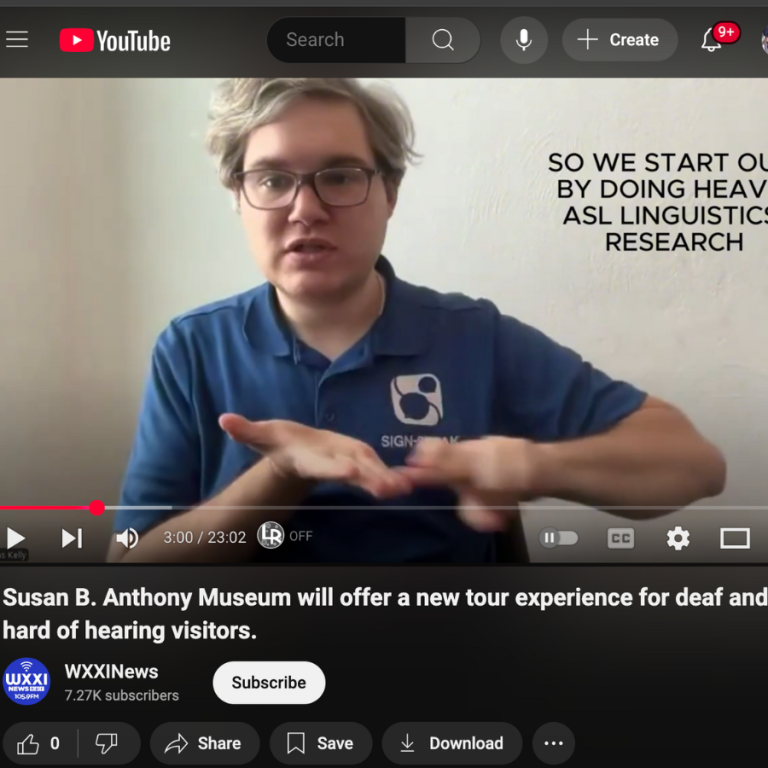
Susan B. Anthony Museum will offer a new tour experience for DHOH visitors | YouTube – WXXINews

Using ASL and an interpreter, Sign-Speak Chief Product Officer Niko Kelly talks about the development of the platform.

Technology and assistive devices | RNID

Stay independent – and continue to enjoy the things you want to do – by making the best of new and existing technology.

Alerting devices

Smoke alarm systems

If you are deaf or have hearing loss, there are smoke alarm systems available that can help alert you when an alarm goes off in your home.

Alarm clocks, baby monitors and multi-alerting systems
If you are deaf or have hearing loss, there are devices available that can help alert you when an alarm goes off in your home.

Doorbells
If you are deaf or have hearing loss, you may find it difficult to hear the doorbell if it’s near the front door or in the hallway. There are devices available that can help alert you when someone is at the door.

Communication

Hearing aids
If you’ve been diagnosed with hearing loss, hearing aids could help you to hear better and communicate more confidently.

Making conversations clearer
There are technologies you can use to make speech and conversations clearer.

How to use accessibility features on video conferencing apps
We look at the accessibility features of 3 of the most popular video conferencing apps and explain how you can use them to make communication easier.

Speech-to-text smartphone apps for deaf people and those with hearing loss and tinnitus
We look at 7 popular speech-to-text (STT) apps for smartphones and compare their features.

Click here to learn more.

New Sign Language Translation Platform Revolutionizes Information Accessibility for the Deaf Community | businesswire

Cirrus, a leading sign language accessibility firm offering education-focused interpreting, today announced the launch of CirrusTranslate, a revolutionary new platform that brings written and spoken language to life for the Deaf and hard of hearing community through high-quality American Sign Language (ASL) translation. An ASL translation of this press release is available here.

Cirrus’ dynamic translators help companies, schools, government agencies and non-profits connect with the Deaf community by delivering inclusive, ADA-compliant communication that deepens understanding, builds trust and expresses emotion. CirrusTranslate makes translation simple and efficient.

Users upload their content and the platform delivers video translations in multiple formats. These AI-assisted, human-delivered translations could provide equal access to information for the almost 7 million sign language users across the U.S. and the 70 million users worldwide.

Click here to continue reading.

Wearable ring translates sign language into text | Popular Science

American Sign Language (ASL) has long enabled real-time conversations for English-speaking people who are deaf and hard-of-hearing. But discussions often face significant lags when one or more conversants aren’t fluent in the language system. But by combining deep learning artificial intelligence and micro-sonar technologies, researchers at Cornell University are developing a new wearable to help overcome the communication barriers. With further refinement, SpellRing may one day facilitate entire conversations regardless of your ASL comprehension skills.

ASL’s earliest iterations developed in the early 18th century at the American School for the Deaf in Hartford, Connecticut. Today, around 400,000 people in the US utilize modern ASL, including a large number of children of deaf adults (CODA). Like any language, ASL often takes years of education and practice to reach fluency. Given that the majority of Americans don’t regularly occupy spaces requiring it, however, the language still remains mostly relegated to populations that are deaf and hard-of-hearing. In the meantime, technological innovations haven’t caught up with them.

“Many other technologies that recognize fingerspelling in ASL have not been adopted by the deaf and hard-of-hearing community because the hardware is bulky and impractical,” Hyunchul Lim, a Cornell information science doctoral student, said in a university profile on March 17. “We sought to develop a single ring to capture all of the subtle and complex finger movement in ASL.”

Click here to watch the video and continue reading.

10-year-old Deaf Girl Is ‘Blown Away’ with New Caption Glasses That Let Her ‘See” Spoken Words | Good News Network

This is the moment a deaf girl tried on a pair of high-tech, $1,500 glasses, which allow her to “see” conversations in real time.

Kendyl Pool was born profoundly deaf due to malformations in her inner ears and has used American Sign Language (ASL) to communicate since she was six months old.

Her mother Bri first discovered these ‘caption glasses’ on TikTok and knew they could be life-changing for her daughter. The glasses transcribe speech into words in real time and display them on the lenses.

She gave the glasses to Kendyl as a surprise gift on her birthday.

“Kendyl had no idea these even existed so when she put them on and I started talking, she was completely shocked,” said Bri. “She was just blown away, she even cried a little bit because she couldn’t believe she could see what I was saying right in front of her.”

The caption glasses developed by HearView connect via Bluetooth to an app that uses voice recognition technology to transcribe spoken words onto a tiny screen embedded inside the lenses. Not only do they allow Kendyl to follow conversations more easily, but they also help her practice speaking by testing whether her own words appear correctly on the screen.

“She can’t hear herself speak so she uses the glasses to check if she’s pronouncing words right,” said Bri. “She’ll say ‘Mom, Mom, Mom’ and wait to see if it pops up. When it does, she gets so excited.”

Click here to continue reading.

Caption Companion

Caption Companion is an 8-inch tablet-style device that offers, free, unlimited, fast, and accurate real-time AI captioning

No account. No sign-up. No subscription. Not even an internet connection is required. Captioning can also appear on existing devices or screens.

Caption Companion comes uniquely paired with a SmartMic for unprecedented accuracy and versatility.

Need to connect remotely to a human captioner instead? Yep, this thing can do that too.

Caption Companion is the first (and so far the only) ASR product to pass the NCSP, a live captioning accuracy certification exam that only human captioners had thus far been able to pass. It’s a much more rigorous test than what you typically see for automatic speech recognition accuracy as it takes into account not only word-for-word accuracy but also capitalization, punctuation, and meaning. Here is the product’s profile on the Global Alliance’s directory: https://speechtotextcaptioning.org/Sys/PublicProfile/76483857/5593669

Click here to learn more.

Captioned Calling

Captioned Telephone Service (CTS) is a service that allows people with hearing loss to make and receive phone calls by displaying captions of what the other person is saying in real time. CTS uses a special telephone with a text screen that works like a standard phone, but with the addition of captions.

Recommended Captioning App

To make calls on your mobile phone and use your own phone number, I recommend the InnoCaption app.

Captioning Phones

These are the major services available that offer captioning landline phones at no cost to individuals with hearing loss.

Hamilton CapTel

  • Phones
  • Online service
  • App

CaptionCall

  • A telecoil loop connection for hearing aid users
  • The ability to save conversations and volume settings
  • Call amplification up to 58dB
  • Operation under the federal government’s Internet Protocol
  • Captioned Telephone Service (IP CTS) program
  • App

CapTel

  • Automatic connection to a captioning service
  • A large, easy-to-read display
  • A built-in answering machine that shows captions of messages
  • The ability to turn captions on or off at any time during a call
  • Adjustable tone and volume control
  • Dial-by-picture capability
  • Adjustable caption font sizes

ClearCaptions

  • A large color touchscreen that displays captions in real-time
  • Customized text sizing
  • A speakerphone for hands-free calling
  • A built-in answering machine